Setting up website in WHM server

WHM? is a Web Host Manager tool that allows server administrators to quickly and easily add new web hosting accounts on a WHM enabled Web server.? Here is steps to create new hosting account without hassle. Log into WHM account with your username and password. Click the Create a New…continue reading →

Managing users in Linux

Here is the very useful list of commands used to manage users. su (1) - run a shell with substitute user and group IDs useradd (8) - Create a new user or update default new user information userdel (8) - Delete a user account and their files from the system.…continue reading →

Convert video files to FLV using FFMPEG command

FFMPEG is a most popular command line tool to convert media files such as audio, video and images from one format to another. We are going to learn ffmpeg command usage to convert other media format to current most popular streaming FLV format. FFMPEG is cross platform tool and does…continue reading →
WebThumb snapping the web

WebThumb snapping the web

A new web 2.0 website thumbnail web service has been launched. You can take any web page snapshot in a very short span of time. Webthumb is very fast then other service over the net. The service offering numerous features: Create thumb in 4 different Sizes 80x60,160x120,320x240,640x480. Keep aspect ratio…continue reading →
Schedule Tasks in Windows XP

Schedule Tasks in Windows XP

Schedule Tasks is a utility in window like Cron Job in Linux to run any script, program at specified time. Scheduled Tasks starts every time you start Windows Operating system and runs silently in the background, and it starts each task that you schedule at the time that you specify…continue reading →
AIM chat now with GMail

AIM chat now with GMail

Google just launched AIM chat with Gmail and several? new features incorporated. Now you can talk to your AIM friends using an integrated chat inside Gmail. Your AIM contact list will be automatically populated in Gmail user contact list. You need to have AIM account to sign in using Gmail.…continue reading →
New Deep Blue WordPress Theme

New Deep Blue WordPress Theme

A new excellent word press theme designed to include various adsense unit. The look and feel of theme is really impressive and professional. The layout of the theme allow bloggers to monetize their site very easily.? The theme monetize to include 336x280, 125?125 adsense units in side bar. Templete include…continue reading →

Permission denied error with godaddy cron job

Cron is a Linux command tool that allows you to schedule tasks unattended at a specified time interval. There are several ways to schedule commands to run. You can run any available command or script like php, perl and shell script as a Cron Job. It run specified command and send output to the user or email id specified in the configuration. This is common error godaddy user face when they run Cron job first time. The Godaddy Cron Manager only ask for the script file to run. You need to give executable file path separately otherwise php file will be run with shell script and produce permission denied error. To over come this problem you simply need to use php executable path as first argument and full path of the script as second argument. Here is the correct Godady executable path. Shell: /bin/sh Perl : /usr/bin/perl PHP4: /web/cgi-bin/php PHP5: /web/cgi-bin/php5 Exmple Cron Job: /web/cgi-bin/php /home/content/youraccount/html/run_cron.php
Setup database backup cron job on godaddy hosting account

Setup database backup cron job on godaddy hosting account

Many time you need to setup Cron Job to schedule specific task at regular interval. This article covering cron job setup on godaddy account. Godaddy account has different interface then traditional cpanel. These instructions apply to WordPress.com server installations. Here are the steps to take daily backup of DBS. Here are the steps to setup cron job for daily backup of database.
  • Log Into your GoDaddy.com account.
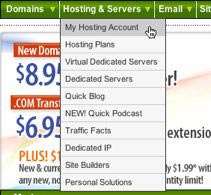
  • Choose "My Hosting Account" from the "Hosting & Servers" menu on the top navigation bar.setup database backup cronjob on godaddy hosting account
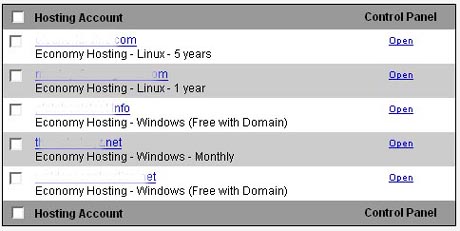
  • In the Hosting Account list, click the Open link beside the account you want to use for your website.Godaddy Hosting Account Setup
  • In the Hosting Manager window, click the Cron Manager icon or "Cron Manager" menu item under content menu. Please refer snapshot below.Godaddy Cron Manager Setup Instruction
  • Now you are on the page where you need to setup cron job. Before this, you need to collect following information with the database..Host Name: (Usually localhost but in case of godaddy account it will be look like mysql139.secureserver.net) Database Name: Name of the backup database. User Name: User name of associative database. In case of godaddy account it will be same as db name. DB Password: Database user password for authentication.
  • Please use following mysqldump command to get backup of desired database. Please change required parameter with your own.Syntax: mysqldump --opt -Q -h (hostname) -u (user-name) --password=(password) (database-name) > (full path of backup file)Example: mysqldump --opt -Q -h p3smysql5.secureserver.net -u mywebdb --password=password mywebdb > /home/content/b/a/b/babychep/html/backups/daily.sql Please replace variable with new one and put entire command in command text box. No need to use browse button here. Select how you want to run these command hourly,daily,weekly and click on save button to save cron job. Godaddy Cron Setup Command
Fedora8 released

Fedora8 released

Fedora 8 has now released on November 8, 2007 with plenty of new features. See complete list of new features added. Added enhanced GNOME 2.20 with improved file management system, enhanced control panel applet, new revised help system, evince document viewer and mail notifcation in Evolution mail client. Online Desktop…continue reading →